Get in touch
I'm always excited to take on new projects and collaborate with innovative minds.
Phone
Website
Address
Dhaka, bangladesh
I'm always excited to take on new projects and collaborate with innovative minds.
Dhaka, bangladesh
A UPS keeps your computers running through a power cut and protects them from surges. How to choose the right capacity and features for your office.
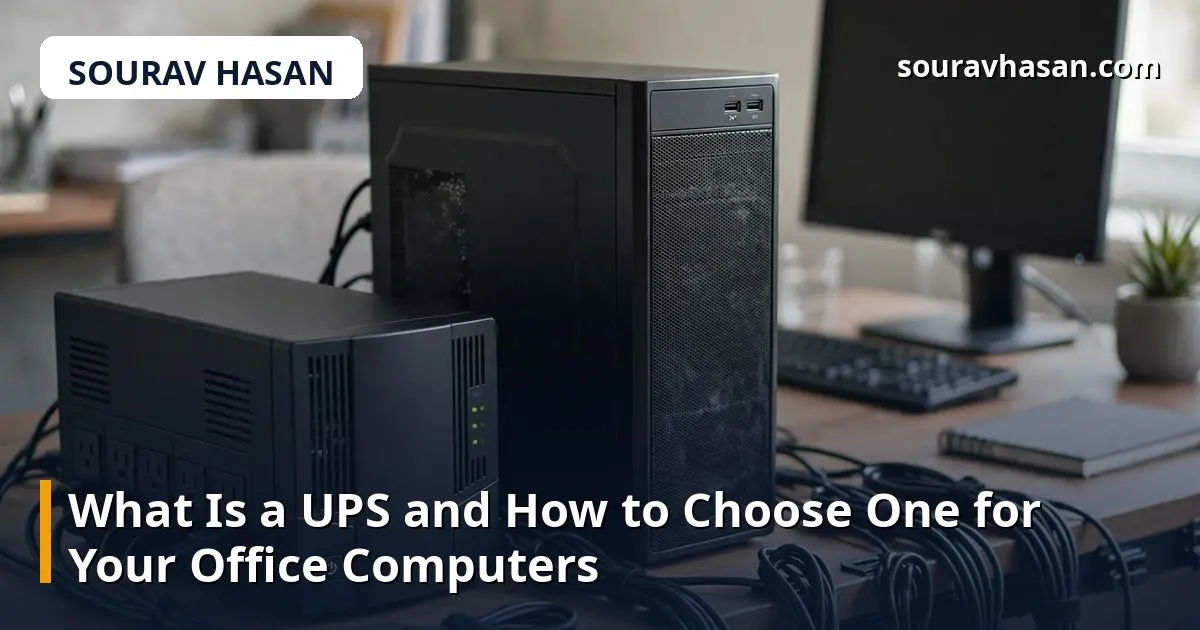
A sudden power cut can do more damage than a few minutes of darkness. Unsaved work is lost, a database can be corrupted, and a server shut down the wrong way may not start again cleanly. A UPS — an Uninterruptible Power Supply — is the simple device that stands between your computers and that risk. This guide explains what a UPS does and how to choose the right one for your office.
In my IT operations work, the UPS is one of the most underrated pieces of office equipment. People buy expensive computers and then leave them plugged directly into the wall, trusting a power supply that can fail without warning. In Bangladesh, where voltage fluctuation and load shedding are a fact of life, a UPS is not a luxury. It is basic protection for the machines your business depends on.
A UPS is a box with a battery inside, sitting between the wall socket and your computer. Under normal conditions it passes power through and keeps its battery charged. When the mains power fails or drops, it switches to battery power in milliseconds — so fast that the computer does not notice — and keeps running for a set time. That time is for saving work and shutting down safely, not for carrying on as normal.
A UPS also protects against the problems you cannot see. Voltage spikes from lightning or grid switching can damage a computer's power supply or motherboard. Brownouts — when voltage sags below normal — can cause crashes and data corruption. Most UPS units smooth out these irregularities automatically, giving your equipment clean, steady power even when the grid does not.
The simplest and cheapest type. It passes mains power straight through and only switches to battery when the power fails. The switch takes a few milliseconds, which is fine for a normal desktop computer. Standby units suit a single PC or a small workstation where the budget matters most.
This type adds automatic voltage regulation: it corrects small rises and falls in voltage without using the battery, which makes the battery last longer and protects against brownouts. It is the best choice for most small offices, offering a good balance of price and protection for desktops, monitors and networking equipment.
The most protective type. It constantly converts mains power to DC and back to AC, so the connected equipment always runs on clean, perfectly stable power. It is also the most expensive and the noisiest. It is meant for servers, critical network equipment and situations where even a millisecond of interruption is unacceptable.
UPS capacity is measured in VA (volt-amperes), and choosing the right size is the most common mistake. A unit that is too small will overload and shut down the moment the power fails — exactly when you need it most. A unit far too large wastes money.
Add up the wattage of everything you want to protect. A typical desktop computer with a monitor draws around 200–300 watts, a laptop far less, and a router and modem only a small amount. Choose a UPS rated comfortably above that total — as a rule of thumb, the VA rating should be at least 1.6 times the total watts, to leave headroom. So a 300-watt setup needs at least a 500 VA unit, and a 600-watt setup with two computers needs 1000 VA or more.
Also consider runtime: how many minutes of battery you need. For a desktop, five to ten minutes is enough to save work and shut down. For a server or a CCTV recorder that should keep running, you need longer — and that means a bigger battery or a unit designed for extended runtime. Think about what the UPS is for before you buy: graceful shutdown, or keeping things running.
Installation is simple: plug the UPS into the wall, plug the computer and monitor into its battery-backed outlets, and let it charge fully before relying on it — usually a few hours for the first charge. Test it once: unplug the UPS from the wall and confirm the computer keeps running and the shutdown software works.
Maintenance is mostly about the battery. Test the UPS every few months by simulating a power cut. Keep it in a ventilated place, away from heat, and do not overload it by plugging in heaters, printers or other high-draw equipment that does not need battery backup. When the battery no longer holds a useful charge, replace it rather than the whole unit — and dispose of the old battery properly, since it contains lead and acid. Keeping this check in your daily IT operations routine means it never gets forgotten.
No. A surge protector only guards against voltage spikes; it gives you no power when the electricity goes out. A UPS provides battery backup as well as surge protection, so your computer keeps running through a cut.
It depends on the load and the battery. A typical 650 VA unit keeps a single desktop and monitor running for about 10–15 minutes; a heavier load shortens that. The right way to think about it is time to save and shut down, not time to keep working.
Every two to three years under normal use, or sooner if runtime drops noticeably. If the UPS warns of a battery fault, replace it — a dead battery means no protection at all.
No. Laser printers draw a large surge of power when they warm up and can overload a UPS. Plug printers into a surge-protected outlet instead, and only protect the computer, monitor and network equipment with the UPS.
A UPS is one of the cheapest forms of insurance in an office. It protects your computers from damage, your work from being lost, and your team from the frustration of a power cut at the worst moment. Choose a line-interactive unit sized above your total load, plug in only what matters, and test it regularly. For the cost of a single afternoon of lost work, you can make sure a power cut is an inconvenience — not a disaster.
Your email address will not be published. Required fields are marked *